 LocationMe
You can save favorite places on a map in seconds with a free browser tool. LocationMe lets you drop a pin on any spot, give it a name, and keep it in a personal list. No account or app is needed.
In this guide, you will learn how to save a location on a map, how to organize saved places into a tidy favorite places list, and how to back everything up so you never lose it.
Why save places on a map
Most people save places for trips, work, or daily life. A favorite restaurant, a parking spot, a trailhead, or a future home can all live on one map.
Saved places save time. You never search for the same address twice. One tap brings the spot back with its exact coordinates.
They also make sharing easy. Send a saved place to a friend, and they get the exact pin instead of a vague description. For travelers, a saved list becomes a personal guidebook.
Privacy matters too. Some methods upload your list to company servers. Others keep it on your device only. Knowing the difference helps you pick the right tool for sensitive spots, like your home.
Students save campus buildings before the first day. Real estate hunters pin every viewing. Delivery drivers keep customer gates that maps get wrong. Commuters pin the cheapest parking near the office. Parents save playgrounds with shade. Once you start, the list grows into a resource you check weekly.
The key is picking a method that keeps your data private and portable. Browser-based saving keeps everything on your own device. Export options like GPX let you move the list to any app.
How to save a location on a map with LocationMe
The quickest way to save places on a map is a tool that needs no signup. Here is how it works:
- Open LocationMe and let it find your position, or click any spot on the map.
- Type a place name, such as "Home" or "Lake Cabin".
- Add an optional note, like "park at the north gate".
- Tap Save current location.
- Your place appears in the list, with its coordinates and the time saved.
Each entry stores its latitude and longitude. Tap Locate on any saved place to jump back to it on the map. Tap Delete to remove places you no longer need.
You can also save your current GPS position directly. Tap Use Precise GPS first, then save. The pin lands exactly where you stand, which is handy for marking trailheads or parking spots on foot.
Everything is stored in your browser's local storage. Nothing is uploaded, so your list stays private. It works on phones, tablets, and desktops alike.
How to save favorite places and organize them into lists
A long list of pins gets messy fast. A little structure keeps your favorite places list useful for months.
Start with clear names. "Italian restaurant downtown" beats "Place 3". Add the city when you travel, like "Lisbon: seafood lunch".
Use notes as labels. A note like "visited June 2026" or "want to try" turns a pin into a mini record. You can also tag by purpose: food, parking, hiking, hotels.
Review the list every few months. Delete one-time spots, like a pop-up market you will not revisit. Keep the places you return to or still plan to visit. A clean list loads faster and is easier to scan.
For bigger collections, export the list and sort it in a spreadsheet. Each place carries its coordinates, so you can filter by region or trip. Our guide on how to export GPX, KML, and GeoJSON files shows the exact steps.
How to save places in Google Maps and Apple Maps
If you prefer a phone app, the built-in maps work too. The steps differ slightly between the two.
In Google Maps:
- Search for a place, or tap and hold any spot on the map.
- Tap the place name at the bottom of the screen.
- Tap Save.
- Pick a list, like Favorites, Want to go, or Starred places. You can also create a new list.
Saved places sync to your Google account. They appear on every device where you sign in. You can share a whole list with friends from the Saved tab.
In Apple Maps:
- Search for a place, or drop a pin by touching and holding the map.
- Swipe up on the info card.
- Tap Add to Favorites or Add to Guides.
- Guides group places together, for example "Weekend in Chicago".
Apple saves to your iCloud account and syncs across your devices. Guides can be shared with other iPhone users.
The trade-off is privacy and lock-in. App-based lists live on company servers and need an account. A browser tool like LocationMe keeps your places on your own device, with no signup at all.
Tips to keep your saved places organized
These five habits take seconds each and prevent the usual mess of duplicate pins and forgotten spots:
- Name places clearly. Include what and where, like "Denver: Union Station".
- Add a note at save time. You will forget the detail later.
- Delete ruthlessly. A short, current list beats a long, stale one.
- Back up monthly. Export to GPX so a cleared browser cache cannot wipe your list.
- Use one system. Pick either the browser tool or an app, not both. Two lists always drift apart.
Back up your favorite places list
Browser storage can be cleared by accident. A backup takes ten seconds and protects the whole list.
On LocationMe, tap GPX under Export places. A file downloads with every place, its name, its note, and its coordinates. Store it in cloud storage or email it to yourself.
Set a monthly reminder on your phone. Pair it with another routine, like paying bills. A backup you never make is the same as no backup at all.
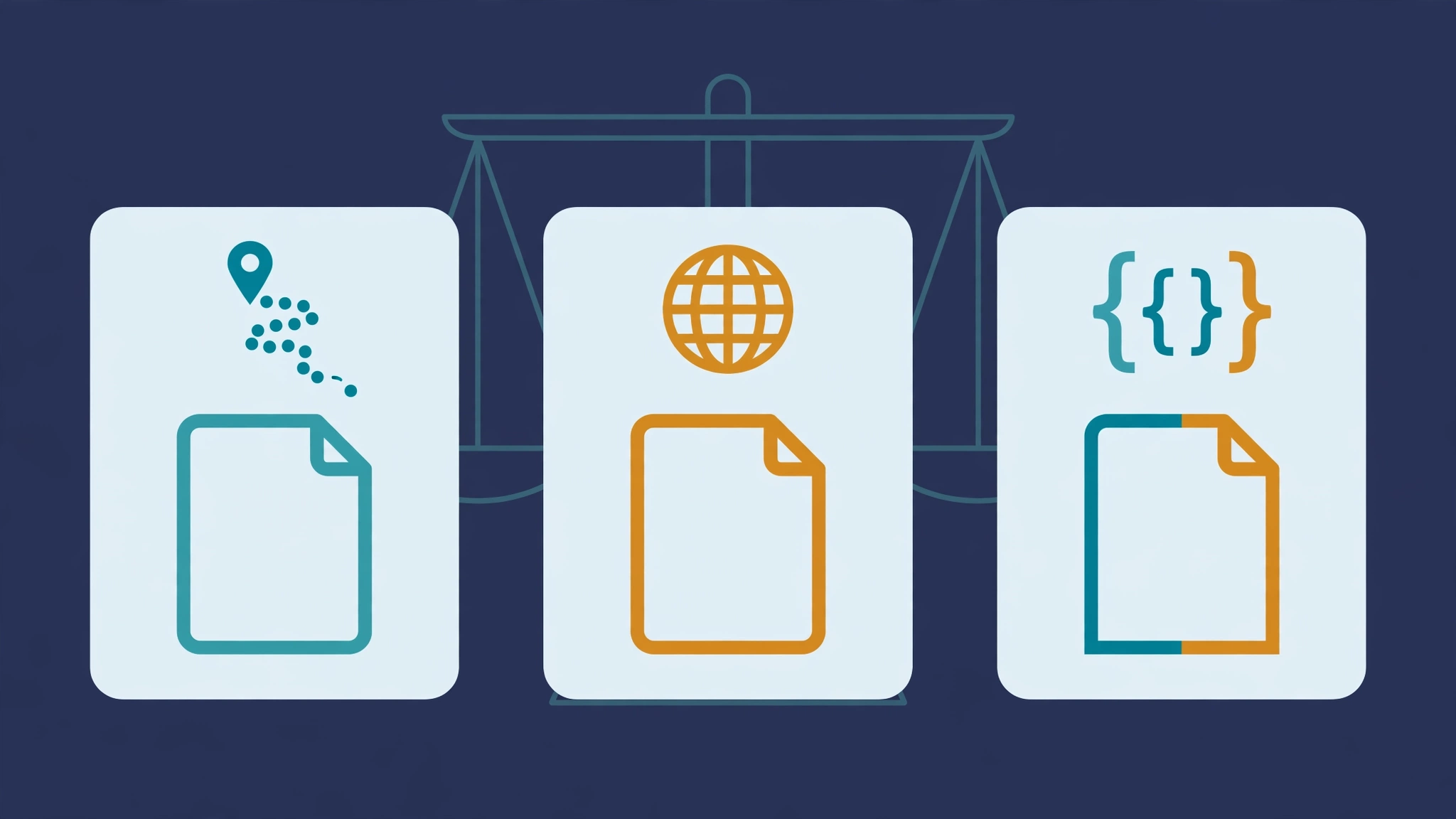
GPX opens in Google Earth, Garmin devices, and most hiking apps. KML works best with Google Earth. GeoJSON suits developers and web maps. If you are unsure which to pick, read our GPX vs KML vs GeoJSON comparison guide.
Frequently asked questions
How do I save a location on a map?
Open LocationMe, click the spot, type a name, and tap Save current location. In Google Maps, tap and hold a spot, then tap Save. In Apple Maps, drop a pin and tap Add to Favorites.
How do I organize saved places?
Use clear names with the city included, add notes at save time, and review the list every few months. Delete one-time spots and keep the places you revisit.
Where is my favorite places list stored?
It depends on the tool. LocationMe stores your list in your browser's local storage on your own device. Google Maps and Apple Maps sync your lists to your account in the cloud.
Can I move saved places to another phone?
Yes. Export the list as GPX from LocationMe, then import the file into any map app on the new phone. App-based lists move automatically when you sign in.
Is it free to save places on map tools?
Yes. LocationMe is free with no account. Google Maps and Apple Maps also save places for free with a standard account.
Planning a trip with several stops? Learn how to sketch a route and plan a multi-stop trip next.